Support
Bittermuse is a cocktail recipe book for your iPhone.
Your data
Your data stays on your iPhone; there is no account. Bittermuse doesn’t sync between devices yet, so deleting the app deletes your recipes. To keep a recipe safe, share its card and save it.
Sharing and Importing Recipes
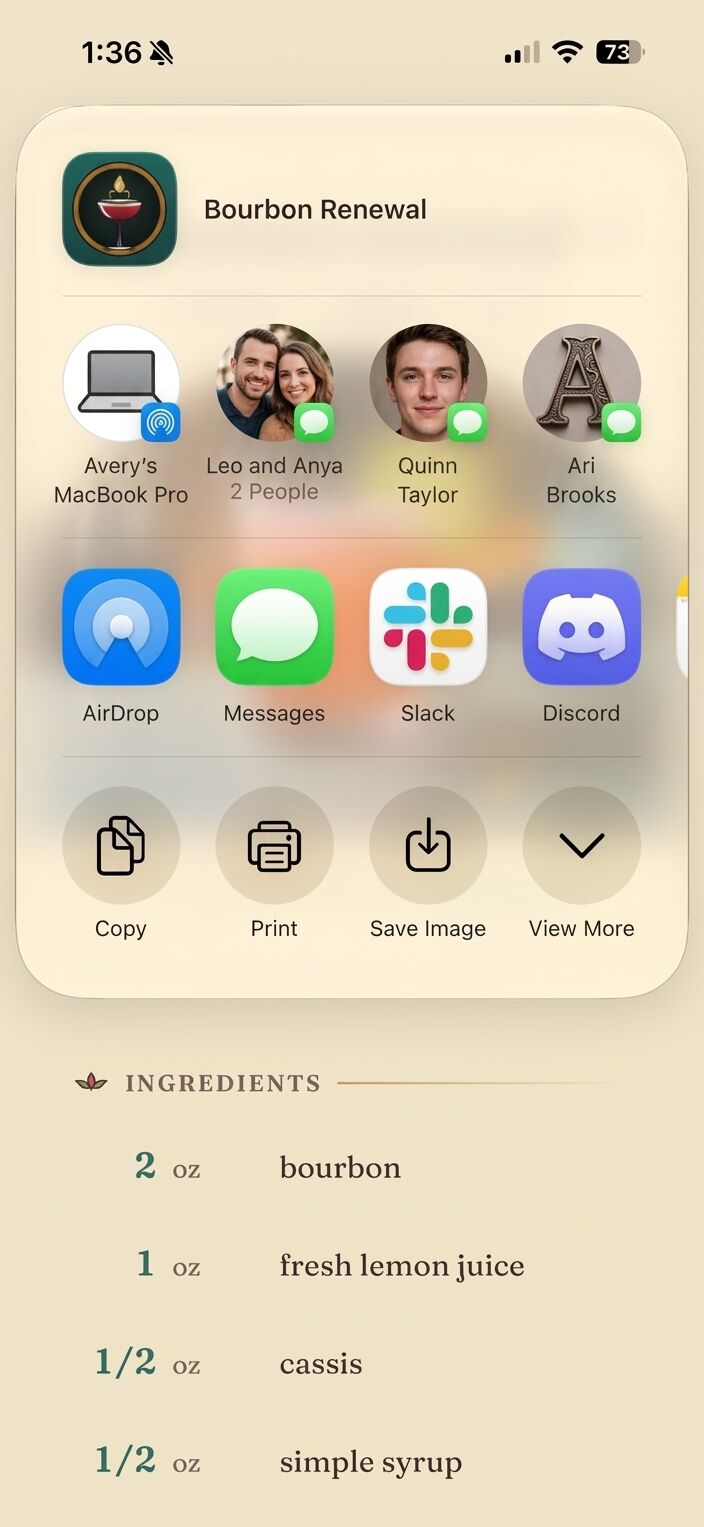
Share a recipe
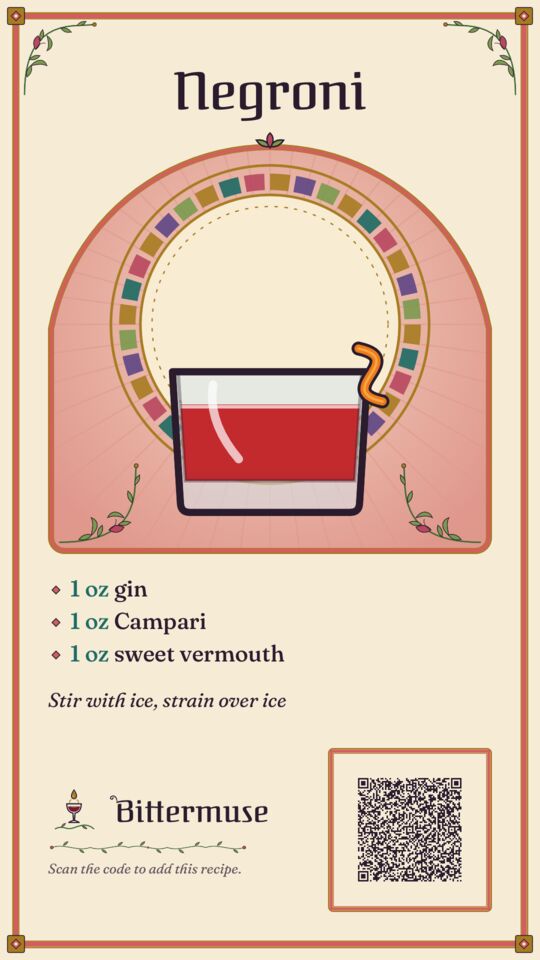
Open the recipe and tap Share. The card is an image of the recipe with a QR code that contains all the information to import it into Bittermuse.
Import a card
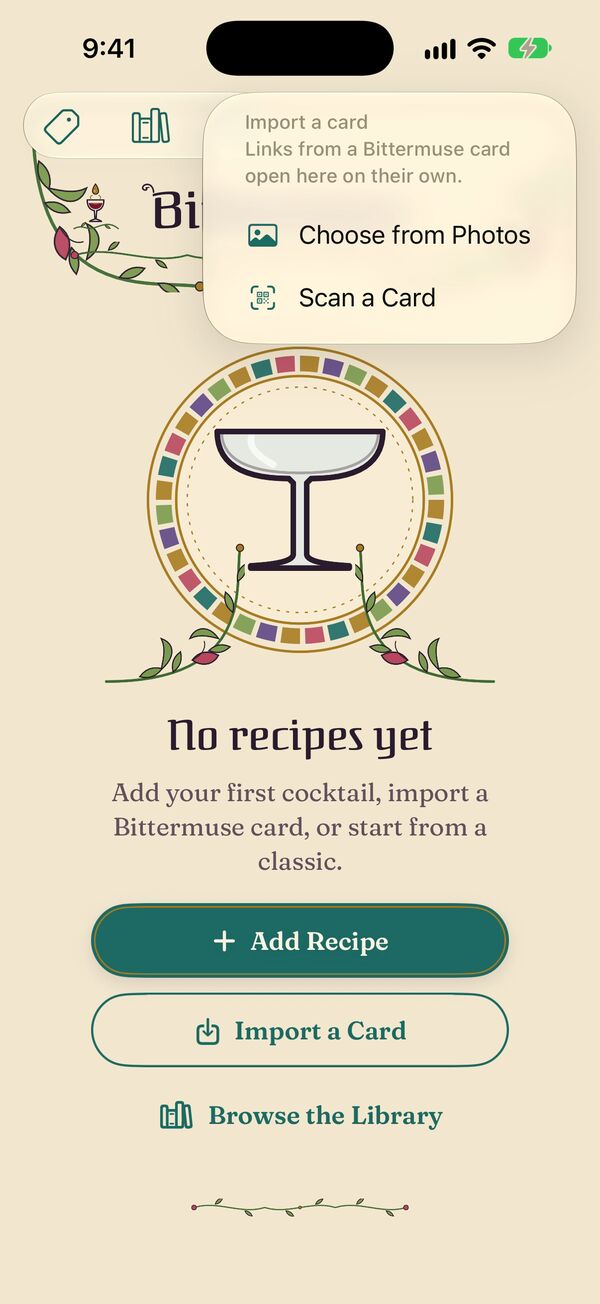
- Tap Import on the list.
- Choose from Photos and pick the card, or Scan a Card and point the camera at it.
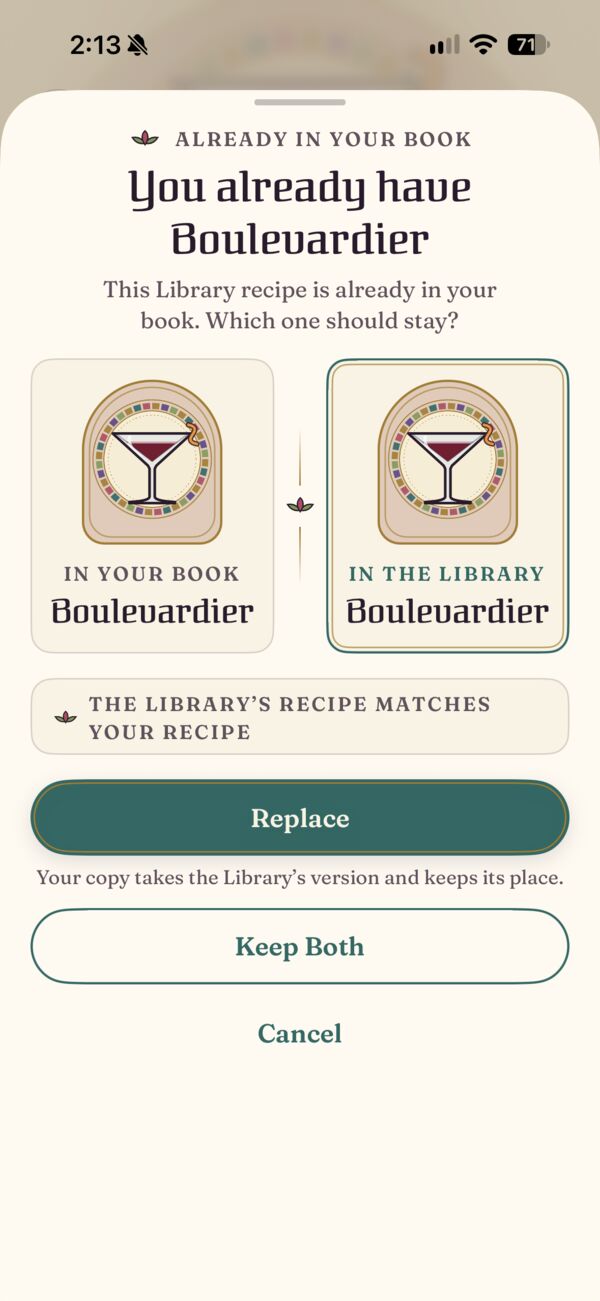
If the recipe is already in your book, Bittermuse asks whether to replace yours, keep both, or cancel.
Start from a classic
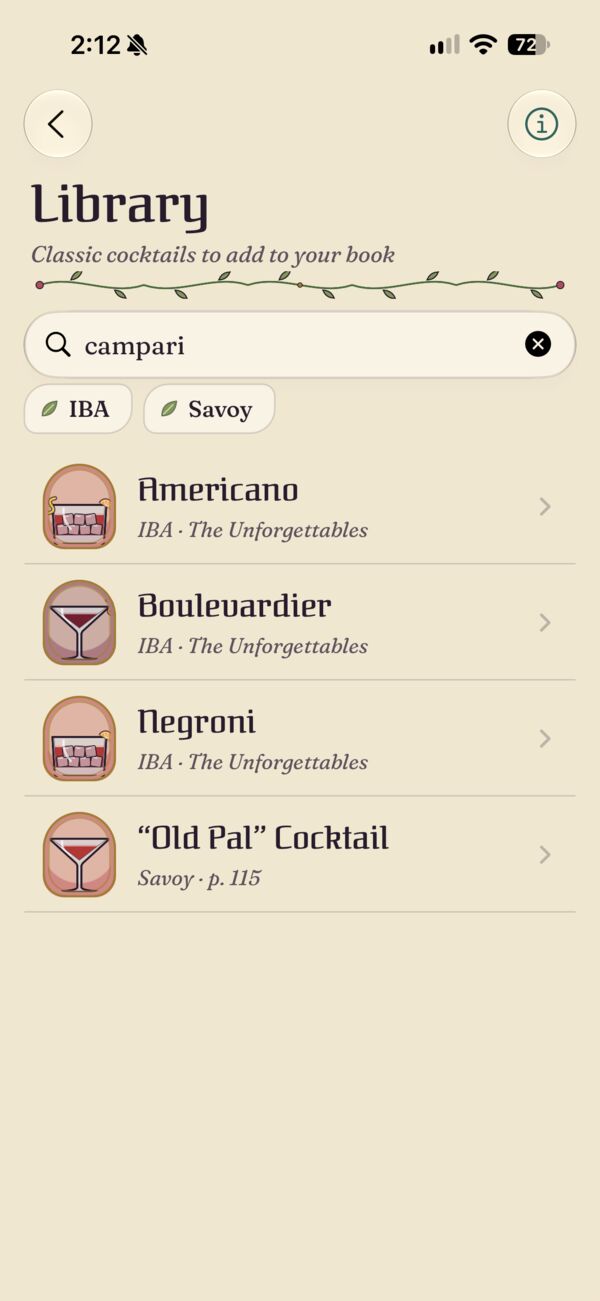
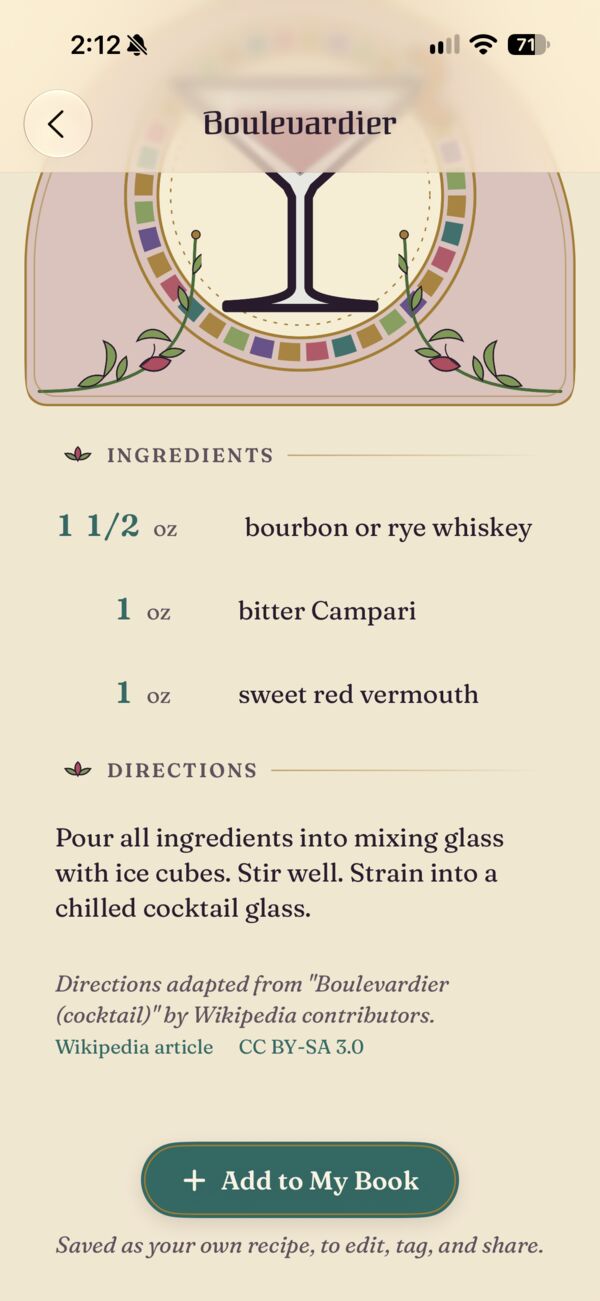
Tap Library on the list, search by name or ingredient, open a recipe, and tap Add to My Book. It becomes your own recipe, to edit as you like.
If you already have it, Bittermuse asks whether to replace yours, keep both, or cancel.
AI pictures and API keys
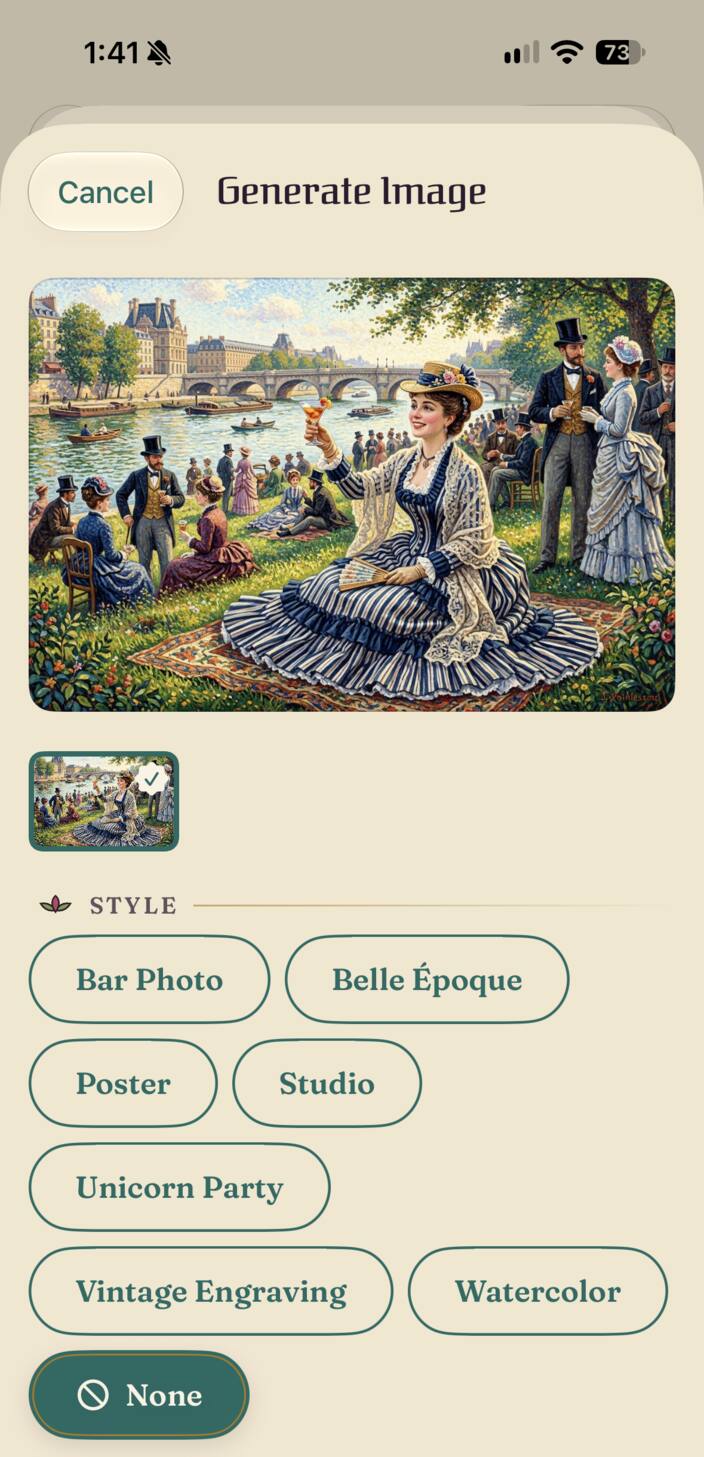
Bittermuse can draw a recipe’s picture with OpenAI (ChatGPT’s image model) or Google (Nano Banana). It uses your own API key, and the provider bills each picture to your account, a few cents apiece.
A ChatGPT or Gemini subscription doesn’t cover it. You'll need credits 🤷
In Bittermuse, open Settings (the gear on the list) and tap How to get an OpenAI key or How to get a Google key for a step-by-step guide. In short:
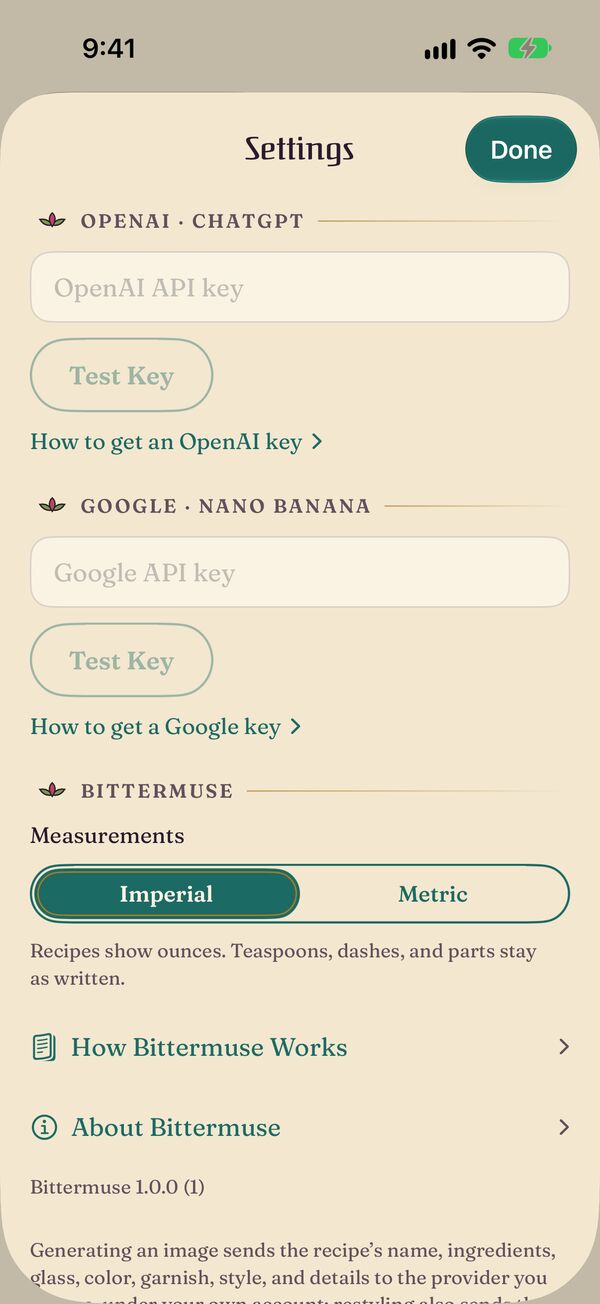
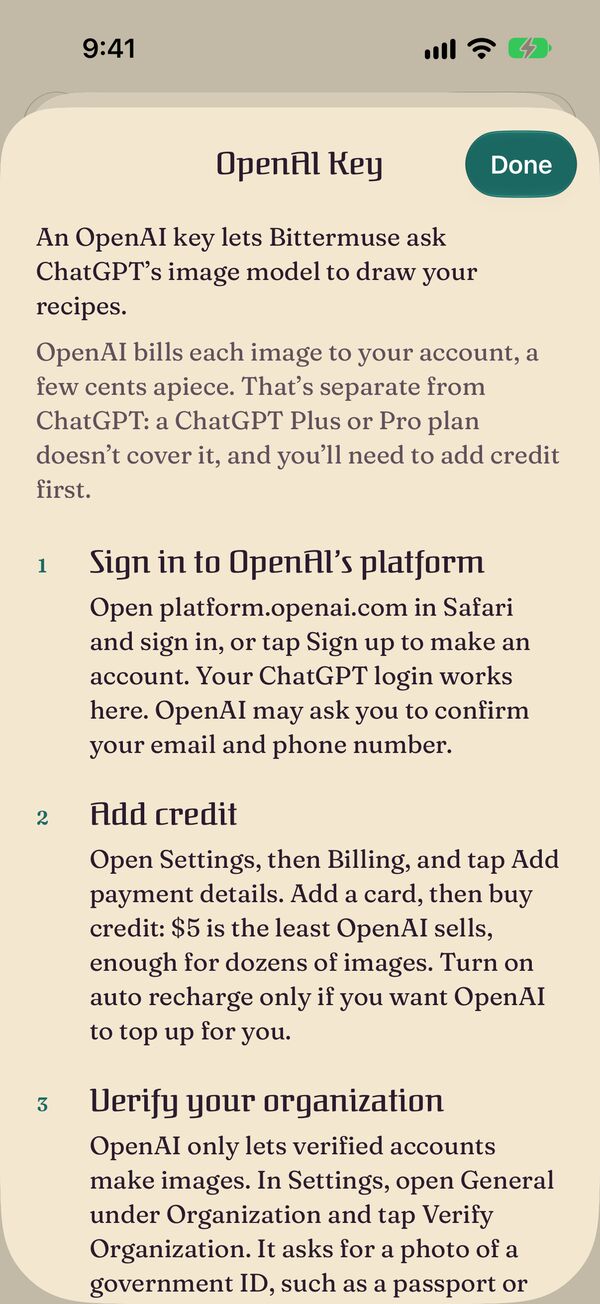
- OpenAI: sign in to OpenAI’s platform, add credit under Billing, verify your organization (OpenAI asks for a photo ID before it will make pictures), then create a key on OpenAI’s key page.
- Google: sign in to Google AI Studio, create a key on Google’s key page, and turn on billing for its project (Nano Banana has no free tier for apps).
Paste the key into its field in Settings and tap Test Key. “This key works.” means the provider knows the key; billing and verification still decide whether it can make pictures. Before the first picture, Bittermuse asks whether to send the recipe to that provider. The privacy policy says exactly what is sent.
Report a problem
Email [email protected] with:
- what you did, what you expected, and what happened instead;
- a screenshot, if you can;
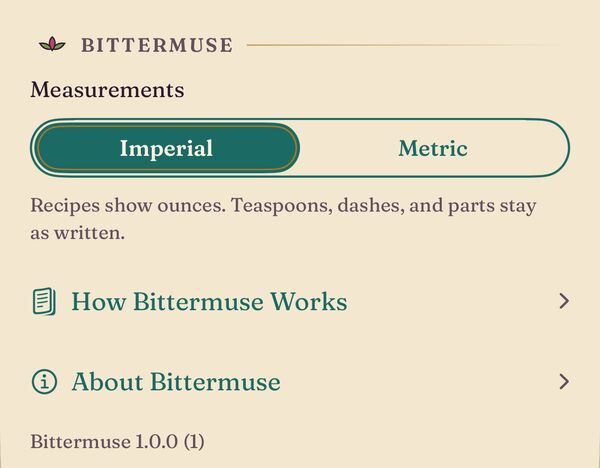
- your iPhone model, its iOS version (Settings → General → About), and Bittermuse’s version (at the end of the Bittermuse section in Bittermuse’s Settings).
Testing a TestFlight build? Take a screenshot and send it from TestFlight’s feedback instead.